Beats Pill⚓︎
The headphones support multiple operating modes. Mode priority: Beats → Standard. Mode changes take effect after restarting the app, provided the required conditions are met.
Beats mode works out of the box, unlocks native headphone features, and replaces some Standard mode settings.
Tested with Beats Fit Pro, Beats Pill, Powerbeats Pro 2, and Powerbeats Fit. Other headphones should theoretically provide at least battery level information.
Battery⚓︎
The charge level is displayed in 1% increments. To view the case charge level, place the headphones in an open case.
End call/Mute and unmute⚓︎
Call and microphone control during a call.
| Option | Description |
|---|---|
| Press twice/Press once | Press twice to end call and press once to mute/unmute |
| Press once/Press twice | Press once to end call and press twice to mute/unmute |
Tone volume⚓︎
Adjusts the volume of sound effects played by AirPods when no audio is playing. While "Low audio latency" is turned on, the volume won't be applied.
| Option | Description |
|---|---|
| 15 - 125% | Value 15-125% used by iPhone, but actual volume 15-100% |
Low audio latency⚓︎
Note
Some Bluetooth drivers have already fixed this problem. If you do not experience a difference, disable this feature.
Reduces the delay between frequent switching on (play) and off (pause) of the sound. Useful when working in Premiere Pro or Audition. The feature can increase battery consumption because it prevents the headphones from going into standby mode.
| Option | Description |
|---|---|
| On | — |
| Off | — |
Auto play⚓︎
Send the "Play" command after connecting the headphones. If there are no open players Windows will ignore the command.
| Option | Description |
|---|---|
| On | — |
| Off | — |
Auto pause⚓︎
Pause playback after disconnecting headphones. Disconnecting headphones using MagicPods reduces the delay before pausing (By any method: button, tray menu or hotkey).
| Option | Description |
|---|---|
| On | — |
| Off | — |
Default headphone volume⚓︎
The selected volume is applied after connection.
| Option | Description |
|---|---|
| Off | — |
| 0 - 100% | — |
Auto disable Handsfree⚓︎
Note
Charge level via Handsfree will not work if HandsFree is disabled.
Tip
Disabling Handsfree will considerably speed up the headphone connection.
The Handsfree profile is used for voice communication and has poor microphone and sound quality. All Bluetooth headphones use this profile.
| Option | Description |
|---|---|
| On | Immediately disables the Handsfree. The MagicPods will monitor and turn off the the Handsfree if it is turned on. |
| Off | Immediately enables the Handsfree. MagicPods will stop monitoring the Handsfree state. |
Microphone doesn't work⚓︎
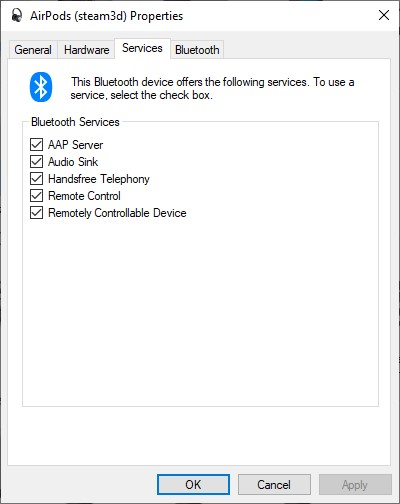
If you are having trouble enabling HandsFree service or manual control it, follow these steps:
- Turn off the Auto disable Handsfree feature of necessary headphones.
- Open
Control panel - Right click on
Devices and Printersand chooseOpen - Select your headphones and check the
Handsfree Telephonyturned on.
Switch sound output to headphones⚓︎
Force the sound output to switch to the headphones after connection. This option does not apply if Auto switch sound output is enabled.
| Option | Description |
|---|---|
| On | — |
| Off | — |
Low battery notification⚓︎
Tip
- Turn on MagicPods in VoiceOver settings so low battery notifications are read out by a narrator.
- Customize the notification priority for MagicPods in Windows Notification Settings so low battery notifications are shown in Focus mode.
Show a notification when the headphone charge is below the specified value. The notification is displayed once for each connected headphones.
| Option | Description |
|---|---|
| Enable | Slide the slider to the necessary value. When the charge level of headphones will be the same as the value or below the notification will appear. |
| Disable | Slide the slider to the left until the value text changed to off |
Standard mode works out of the box and requires no additional setup.
Battery⚓︎
The charge level is displayed in 10% increments. To view the case charge level, place the headphones in an open case.
Fast search⚓︎
Note
If there are two or more the same headphone model in the search radius, the accuracy of the data may be reduced.
Speeds up headphones searching time and ear detection (where supported). Switch this setting on only when no one else around you is using the same headphone model as yours.
| Option | Description |
|---|---|
| On | — |
| Off | — |
Fast search is affected by the AirPods search radius parameter. The data of the headphones within this search radius will be used for the functions: charge level, ear detection.
Low audio latency⚓︎
Note
Some Bluetooth drivers have already fixed this problem. If you do not experience a difference, disable this feature.
Reduces the delay between frequent switching on (play) and off (pause) of the sound. Useful when working in Premiere Pro or Audition. The feature can increase battery consumption because it prevents the headphones from going into standby mode.
| Option | Description |
|---|---|
| On | — |
| Off | — |
Auto play⚓︎
Send the "Play" command after connecting the headphones. If there are no open players Windows will ignore the command.
| Option | Description |
|---|---|
| On | — |
| Off | — |
Auto pause⚓︎
Pause playback after disconnecting headphones. Disconnecting headphones using MagicPods reduces the delay before pausing (By any method: button, tray menu or hotkey).
| Option | Description |
|---|---|
| On | — |
| Off | — |
Default headphone volume⚓︎
The selected volume is applied after connection.
| Option | Description |
|---|---|
| Off | — |
| 0 - 100% | — |
Auto disable Handsfree⚓︎
Note
Charge level via Handsfree will not work if HandsFree is disabled.
Tip
Disabling Handsfree will considerably speed up the headphone connection.
The Handsfree profile is used for voice communication and has poor microphone and sound quality. All Bluetooth headphones use this profile.
| Option | Description |
|---|---|
| On | Immediately disables the Handsfree. The MagicPods will monitor and turn off the the Handsfree if it is turned on. |
| Off | Immediately enables the Handsfree. MagicPods will stop monitoring the Handsfree state. |
Microphone doesn't work⚓︎
If you are having trouble enabling HandsFree service or manual control it, follow these steps:
- Turn off the Auto disable Handsfree feature of necessary headphones.
- Open
Control panel - Right click on
Devices and Printersand chooseOpen - Select your headphones and check the
Handsfree Telephonyturned on.
Switch sound output to headphones⚓︎
Force the sound output to switch to the headphones after connection. This option does not apply if Auto switch sound output is enabled.
| Option | Description |
|---|---|
| On | — |
| Off | — |
Low battery notification⚓︎
Tip
- Turn on MagicPods in VoiceOver settings so low battery notifications are read out by a narrator.
- Customize the notification priority for MagicPods in Windows Notification Settings so low battery notifications are shown in Focus mode.
Show a notification when the headphone charge is below the specified value. The notification is displayed once for each connected headphones.
| Option | Description |
|---|---|
| Enable | Slide the slider to the necessary value. When the charge level of headphones will be the same as the value or below the notification will appear. |
| Disable | Slide the slider to the left until the value text changed to off |